Create Large Android App Bundle in Unreal Engine
Break the size limit with Google Play Asset Delivery
The problem
The Google Play Store imposes a strict 200MB base file size limit, as stated in the Google Play maximum size limits. While it is possible to create a game well below the 200MB limit, one would argue that is not what Unreal Engine should be used for. Further down the documentation, we can see a table showing several app components of various sizes.
| App component | App download size limit |
|---|---|
| Base module | 200 MB |
| Individual feature modules | 200 MB |
| Individual asset packs | 1.5 GB |
| Cumulative total for all modules and install-time asset packs | 4GB |
| Cumulative total for asset packs delivered on-demand or fast-follow | 4GB1 |
Looking at the table above, there’s actually a greater limit of 8GB (or 14GB if you’re a Google Play Partner Program for Games). How, you might ask? Well, the solution is Google Play Asset Delivery.
Play Asset Delivery
Quoted from the site itself:
Play Asset Delivery (PAD) brings the benefits of app bundles to games. It allows games larger than 200MB to replace legacy expansion files (OBBs) by publishing a single artifact to Play containing all the resources the game needs.
This is in line of what Android App Bundle (denotes by .aab) is aiming for - streamlining the app content delivery to the users.
Play Asset Delivery uses asset packs, which are composed of assets (such as textures, shaders, and sounds), but no executable code. Through Dynamic Delivery, you can customize how and when each asset pack is downloaded onto a device according to three delivery modes:
install-time,fast-follow, andon-demand.
Google PAD supports multiple asset pack types to add onto your existing base file:
install-time- delivered when the app is installed. Only 1 is allowed to be added to the base file.fast-follow- downloaded automatically as soon as the app is installed. The app doesn’t need to be opened to initiate the download process. Only 1 is allowed per app bundle.on-demand- asset packs that are downloaded while the app is running.
A total of 50 asset packs are allowed in an Android App Bundle.
Pre-requisites
These built-in plugins are needed to download and install the asset packs:
- GooglePAD
- Mobile Patching Utilities
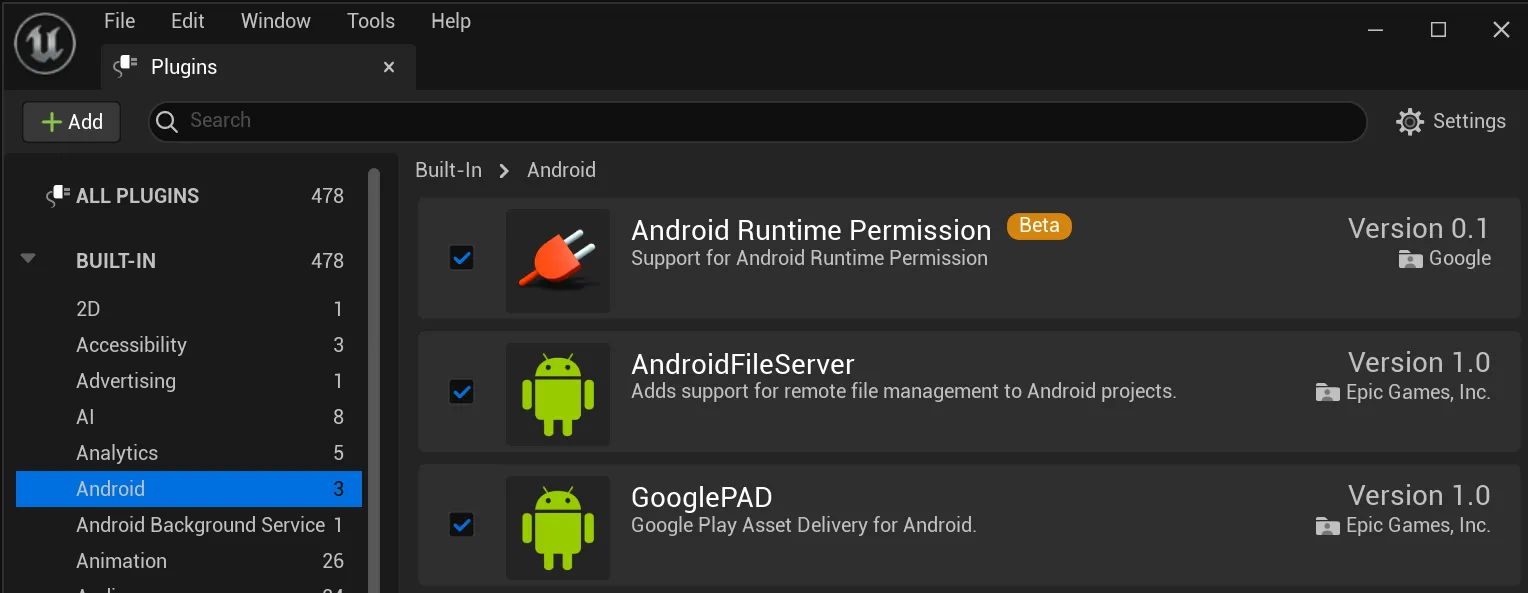
The following settings should be set in your project settings:
- Android > Package data inside APK set to
false. - Android > Generate Bundle (AAB) set to
true. - GooglePAD > Enable Plugin set to
true.
Preparing .pak files
The official Unreal Engine guide for Google Play Asset Delivery Reference contains comprehensive steps to package asset chunks to Google PAD. The same method is also applicable for Downloadable Contents (DLC) with map-based .pak files. Both methods have pros and cons, but ultimately, it is up to your project distribution strategy.
Warning
Both asset chunks and DLC methods require a controlled asset references. Having any hard/soft references to assets in different chunks/maps may cause them to be bundled together - which will significantly increases build size.
Using DLC method
As mentioned in the UE patching and DLC documentation, a .pak file can be used to add additional content to the base game. The basic idea of using DLC as an asset pack is as follows:
- Create a game base version
- Based on the base version, generate different map
.pakfiles respectively.
Generate DLC with the editor
The easiest way to create a DLC is to use the editor’s built-in project launcher. In the editor, navigate to Tools > Project Launcher on UE5 or Window > Project Launcher on UE4. Then, select Add > Minimal Android APK + DLC.
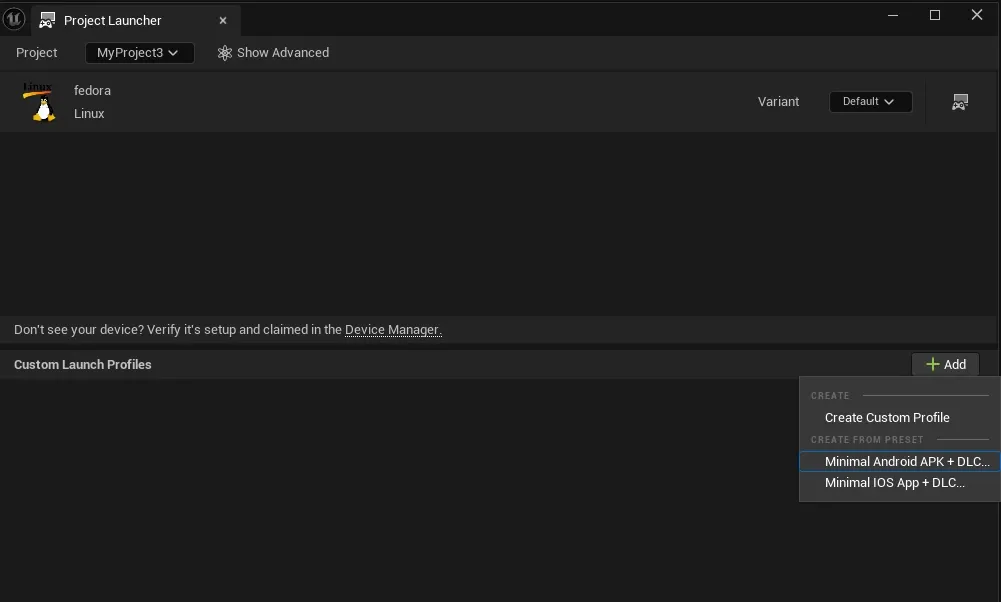
In the following prompt, create or select the Build directory in the root project path as the build output location.
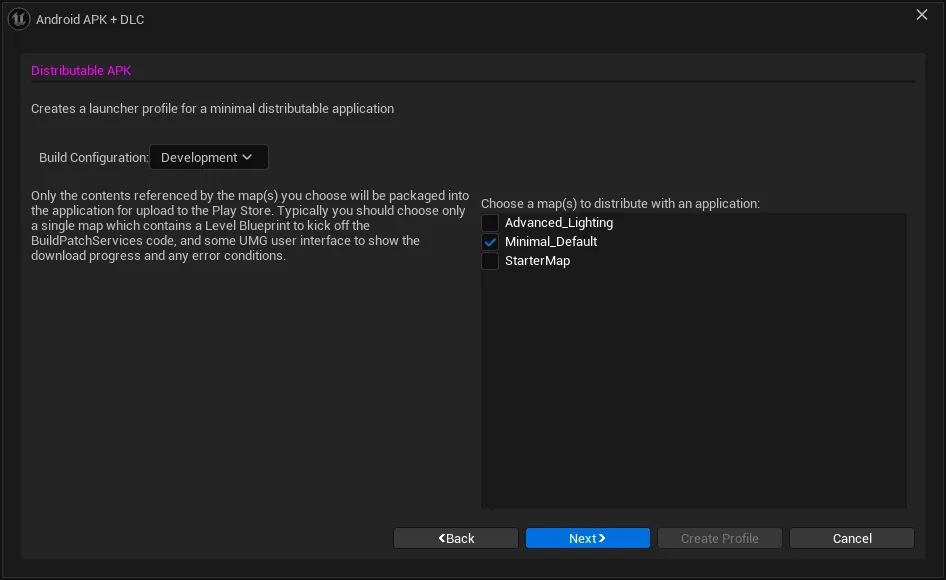
When prompted with the map selection for the minimal distribution application, select the base map(s) that has the necessary game code to download the other asset packs. In the following example, a map called Minimal_Default that contains the downloader is selected.
Next, select the target Android texture format and the maps that will be packaged as a DLC. For this example, Android_ASTC is selected as the texture format and Starter_Map is selected as the DLC.
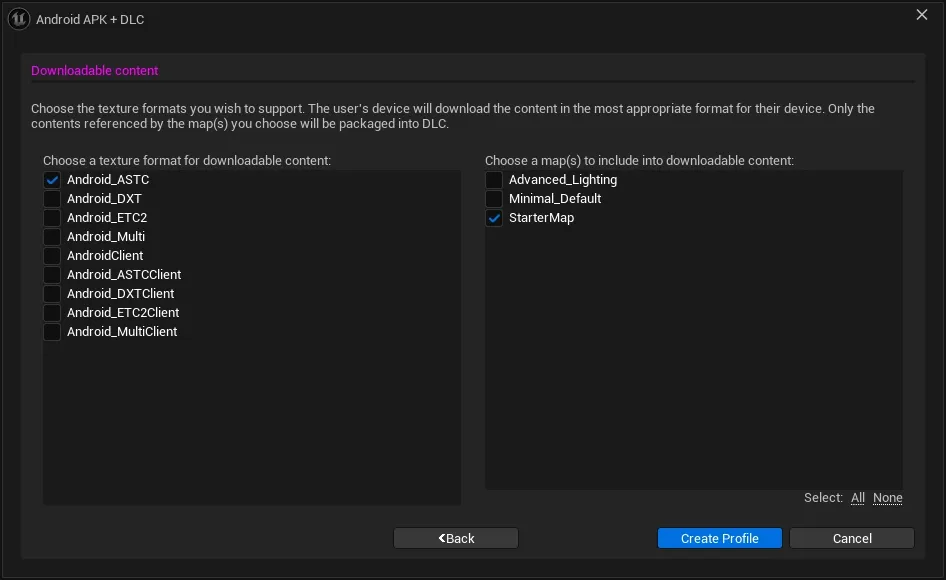
Clicking Create Profile will create 2 new custom launch profiles, namely <Project Name> - Android APK and <Project Name> - Android DLC.

Launching each profile respectively will create a base version, and a DLC with the maps as decribed above. The files generated will be placed in the Builds directory mentioned earlier.
Note
A base build with a release version must be built first in order for the DLC to be generated properly. This applies for each version of the project. More in-depth explanation on the custom launch profile can be found here.
To add more DLC in the launch profile, simply duplicate the launch profiles in the Unreal Engine Frontend, located in the Unreal Engine’s root directory Engine/Programs/UnrealFrontend/Profiles. Edit the name and the map list as needed.
Generate DLC with the CLI
Assuming that the engine and the project files has been compiled and running:
# Build a base version with UAT<path-to-unreal-engine>/Build/BatchFiles/RunUAT.bat BuildCookRun -project="<path-to-project>/MyProject.uproject" -noP4 -clientconfig=Development -serverconfig=Development -nocompileeditor -unrealexe="<path-to-unreal-engine>/Engine/Binaries/Win64/UnrealEditor" -utf8output -platform=Android -cookflavor=ETC2 -build -cook -map=Minimal_Default+Minimal_Default -CookCultures=en -unversionedcookedcontent -pak -createreleaseversion=1.0 -stage -package -cmdline="Minimal_Default -Messaging" -addcmdline="-SessionId=296BC59C9FF14749871FE42A69DF2D09 -SessionOwner='drpsyko' -SessionName='MyProject - Android APK' " -archive -archivedirectory="<path-to-project>/Build/App/1.0"
# Create a DLC based on the base version. Reusable by changing the dlcname, map & chunkinstalldirectory<path-to-unreal-engine>/Build/BatchFiles/RunUAT.bat BuildCookRun -project="<path-to-project>/MyProject3.uproject" -noP4 -clientconfig=Development -serverconfig=Development -nocompileeditor -unrealexe="<path-to-unreal-engine>/Engine/Binaries/Win64/UnrealEditor" -utf8output -platform=Android -cookflavor=ASTC -cook -map=StarterMap -CookCultures=en -unversionedcookedcontent -pak -dlcname=DLC1.0 -DLCIncludeEngineContent -basedonreleaseversion=1.0 -createchunkinstall -chunkinstalldirectory="<path-to-project>/Build/HTTPchunks/DLC1.0" -chunkinstallversion=DLC1.0 -stage# Build a base version with UAT<path-to-unreal-engine>/Build/BatchFiles/RunUAT.command BuildCookRun -project="<path-to-project>/MyProject.uproject" -noP4 -clientconfig=Development -serverconfig=Development -nocompileeditor -unrealexe="<path-to-unreal-engine>/Engine/Binaries/Mac/UnrealEditor" -utf8output -platform=Android -cookflavor=ETC2 -build -cook -map=Minimal_Default+Minimal_Default -CookCultures=en -unversionedcookedcontent -pak -createreleaseversion=1.0 -stage -package -cmdline="Minimal_Default -Messaging" -addcmdline="-SessionId=296BC59C9FF14749871FE42A69DF2D09 -SessionOwner='drpsyko' -SessionName='MyProject - Android APK' " -archive -archivedirectory="<path-to-project>/Build/App/1.0"
# Create a DLC based on the base version. Reusable by changing the dlcname, map & chunkinstalldirectory<path-to-unreal-engine>/Build/BatchFiles/RunUAT.command BuildCookRun -project="<path-to-project>/MyProject3.uproject" -noP4 -clientconfig=Development -serverconfig=Development -nocompileeditor -unrealexe="<path-to-unreal-engine>/Engine/Binaries/Mac/UnrealEditor" -utf8output -platform=Android -cookflavor=ASTC -cook -map=StarterMap -CookCultures=en -unversionedcookedcontent -pak -dlcname=DLC1.0 -DLCIncludeEngineContent -basedonreleaseversion=1.0 -createchunkinstall -chunkinstalldirectory="<path-to-project>/Build/HTTPchunks/DLC1.0" -chunkinstallversion=DLC1.0 -stage# Build a base version with UAT<path-to-unreal-engine>/Build/BatchFiles/RunUAT.sh BuildCookRun -project="<path-to-project>/MyProject.uproject" -noP4 -clientconfig=Development -serverconfig=Development -nocompileeditor -unrealexe="<path-to-unreal-engine>/Engine/Binaries/Linux/UnrealEditor" -utf8output -platform=Android -cookflavor=ETC2 -build -cook -map=Minimal_Default+Minimal_Default -CookCultures=en -unversionedcookedcontent -pak -createreleaseversion=1.0 -stage -package -cmdline="Minimal_Default -Messaging" -addcmdline="-SessionId=296BC59C9FF14749871FE42A69DF2D09 -SessionOwner='drpsyko' -SessionName='MyProject - Android APK' " -archive -archivedirectory="<path-to-project>/Build/App/1.0"
# Create a DLC based on the base version. Reusable by changing the dlcname, map & chunkinstalldirectory<path-to-unreal-engine>/Build/BatchFiles/RunUAT.sh BuildCookRun -project="<path-to-project>/MyProject3.uproject" -noP4 -clientconfig=Development -serverconfig=Development -nocompileeditor -unrealexe="<path-to-unreal-engine>/Engine/Binaries/Linux/UnrealEditor" -utf8output -platform=Android -cookflavor=ASTC -cook -map=StarterMap -CookCultures=en -unversionedcookedcontent -pak -dlcname=DLC1.0 -DLCIncludeEngineContent -basedonreleaseversion=1.0 -createchunkinstall -chunkinstalldirectory="<path-to-project>/Build/HTTPchunks/DLC1.0" -chunkinstallversion=DLC1.0 -stageUsing primary asset chunks
A recap for creating chunks from Google Play Asset Delivery refernce:
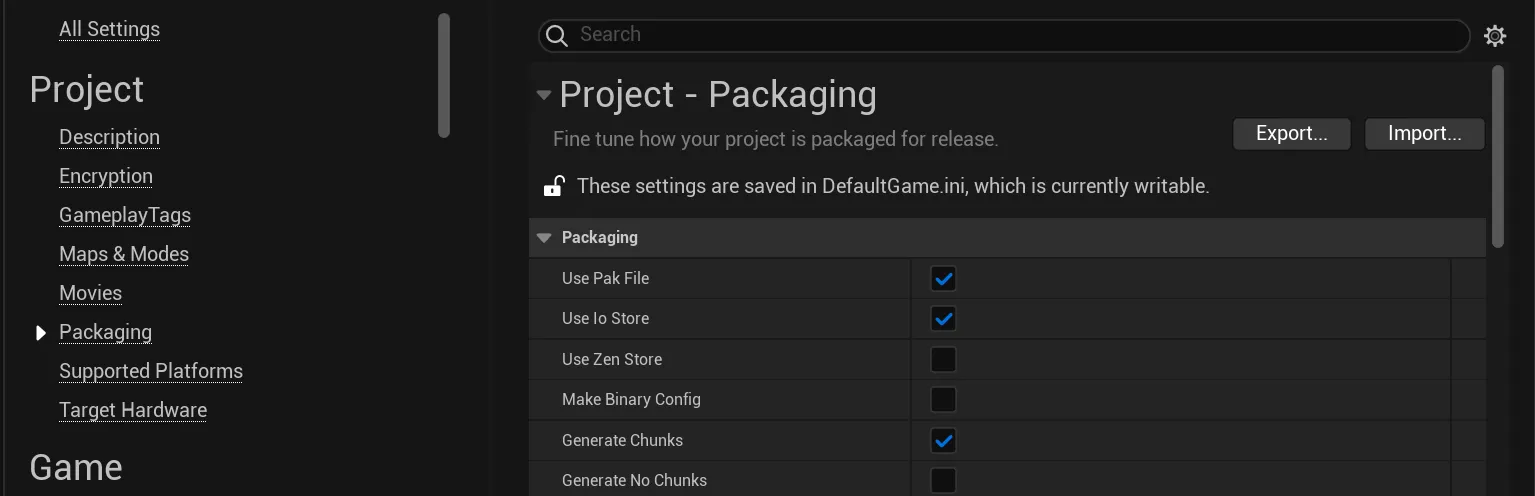
- Open your Project Settings and navigate to Project > Packaging and make sure Generate Chunks is enabled.
-
Define the chunks with either:
-
When generating the packaged build, the
.pakchunks will be placed inSaved/StagedBuilds/Android[ProjectName]/Content/Paks
Create Android App Bundle
Once you have all of the relevant .pak files, place them in these following locations:
fast-followasset packs must be placed inBuild/Android/gradle/assetpacks/fast-follow/[assetpackname]/src/main/assetson-demandasset packs must be placed inBuild/Android/gradle/assetpacks/on-demand/[assetpackname]/src/main/assets
Replace [assetpackname] with the name of the asset pack that the chunks will be bundled into. You can create multiple different named asset packs with different sets of .pak files. However, the names of your asset packs must be unique, and they may not be re-used between fast-follow and on-demand. This name will be the one that you use when querying for asset packs with the API.
Finally, you need to add a build.gradle file in the asset pack directory. As an example, this is for the starter_map on-demand asset pack:
apply plugin: 'com.android.asset-pack'
def fileparts = projectDir.absolutePath.replaceAll('\\\\', '/').tokenize('/')def assetPackName = fileparts[fileparts.size()-1]def assetPackType = fileparts[fileparts.size()-2]
assetPack {  packName = assetPackName  dynamicDelivery {    deliveryType = assetPackType    instantDeliveryType = assetPackType  }}
After you have met these requirements, package the project as an app bundle again, and it will include each of these asset packs in your build. When you upload the .aab App Bundle to the Google Play Store, the asset packs will be available for download using the GooglePAD API.
Downloading asset packs in Android
The install-time and fast-follow asset packs are automatically downloaded into the device during installation and on app start respectively. Only on-demand asset pack can be installed/removed at runtime.
Querying available asset packs
Using the asset pack names generated above, you can query the status of the on-demand asset packs. Check the local asset pack availablity:
Requesting asset pack download
If some or all asset packs aren’t downloaded to the local device, create a download request:
If successful, continue to monitor the download using a looping function timer. This is important as the info request process isn’t synchronous and does not have any callbacks in blueprint.
Mount asset packs
If all asset packs are successfully downloaded, mount them using the asset pack path respectively.
Testing and debugging asset packs
As of now, Unreal Engine does not provide any script for installing or testing .aab files. For that, we’ll be using bundletool to install an Android App Bundle file. Java 8 Runtime Environment (JRE) or newer is needed to run bundletool.
Inspecting AAB
For in depth view of the generated .aab file, you can use the APK Analyzer in Android Studio. With the APK Analyzer, you can:
- View the absolute and relative size of files in the app, such as the DEX and Android resource files.
- Understand the composition of DEX files.
- Quickly view the final versions of files in the app, such as the
AndroidManifest.xmlfile. - Perform a side-by-side comparison of two APKs or app bundles.
Additionally, all .pak files within the asset packs in the .aab file can be extracted using the UnrealPak tool from the Unreal Engine SDK or bundled within the Unreal Engine binary build.
Generating APKs
For development builds, valid signing information is not necessary. If no signing information is provided, bundletool will attempt to sign the APKs with a debug key.
# Generate APKs without signing informationbundletool build-apks --bundle=/MyApp/my_app.aab --output=/MyApp/my_app.apks --local-testing
# Generate APKs with signing informationbundletool build-apks --bundle=/MyApp/my_app.aab --output=/MyApp/my_app.apks --ks=/MyApp/keystore.jks --ks-pass=file:/MyApp/keystore.pwd --ks-key-alias=MyKeyAlias --key-pass=file:/MyApp/key.pwd --local-testing
Installing APKs
Once the APKs is extracted from the .aab file, use the bundletool to install into an Android device. For this, the Android device’s USB debugging mode must be enabled and adb package is installed and on system PATH. You may check the status of the connected device using adb devices in the terminal.
bundletool install-apks --apks=/MyApp/my_app.apksIf the installation is successful, you may test the app and download the asset packs without needing to upload them to the Play Store. This is due to the --local-testing flag specified in the APKs generation.
Google Play also allows you to test and share your app using internal app sharing. This method simulates the Play Asset Delivery and should behave similarly in production.
For more device-specific APKs generation and information, refer to the bundletool documentation.
Footnotes
-
Developers in the Google Play Partner Program for Games are allowed to deliver additional asset packs of up to 6GB, meaning their cumulative total for asset packs delivered on-demand and fast-follow is 10GB instead of 4GB. ↩